
OTP conversion rate is the share of users who asked for an OTP and then verified it. It is the number that tells you how many sign-ups, logins or COD confirmations you lose at the code screen. This guide shows how to measure it with the Fast2SMS OTP report and its export, how to split it into delivery and verification so you can see where users drop, and which changes usually move it up.
The three numbers to track
| Metric | Formula | What a drop means |
|---|---|---|
| Delivery rate | OTP messages delivered / OTP messages sent | A sending problem: wrong numbers, DLT issues, phones off, one channel failing. |
| Verification rate | OTPs verified / OTPs delivered | A screen problem: users could not find, read or type the code in time. |
| OTP conversion rate | Users who verified / users who requested an OTP | The full picture, counted per user, not per message. |
Count conversion per user or per session, not per message. One user who taps Resend twice creates three messages but is still one person who either got in or did not.
Where to find the data in Fast2SMS
-
Check delivery in the OTP Report
Open Delivery Reports > OTP Report and pick a date range. The cards show Total, Delivered, Read (WhatsApp), Failed, Sent and Pending, and the donut gives the share of each. Use the filter’s OTP Channel tab to compare SMS and WhatsApp.
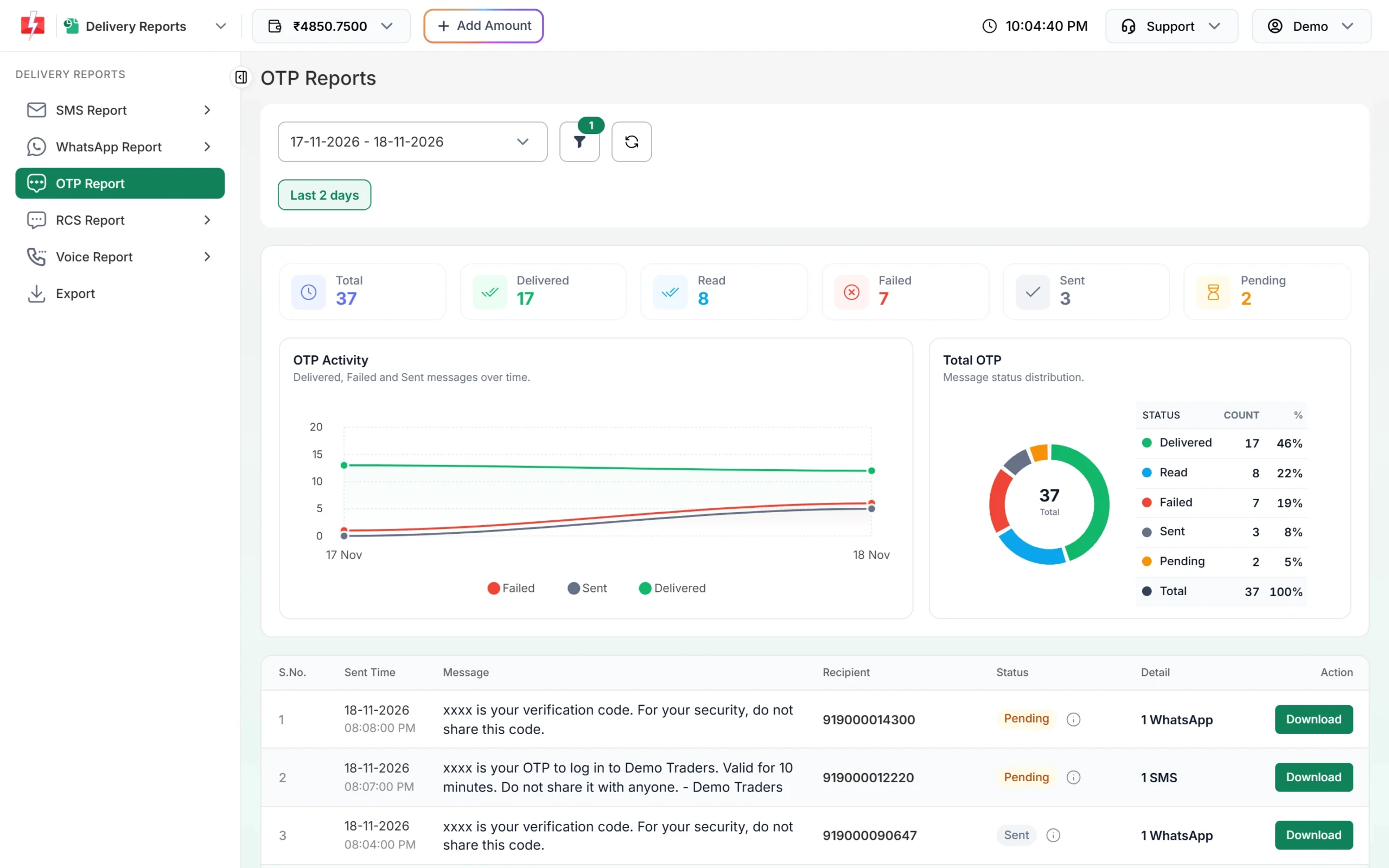
Delivery numbers for your OTPs over the chosen dates. -
Export the report to get verification results
Click Export, choose OTP, pick the dates and click Submit. When the file is ready, click Download. Files are kept for 48 hours. The export is the only place that shows whether each OTP was verified.
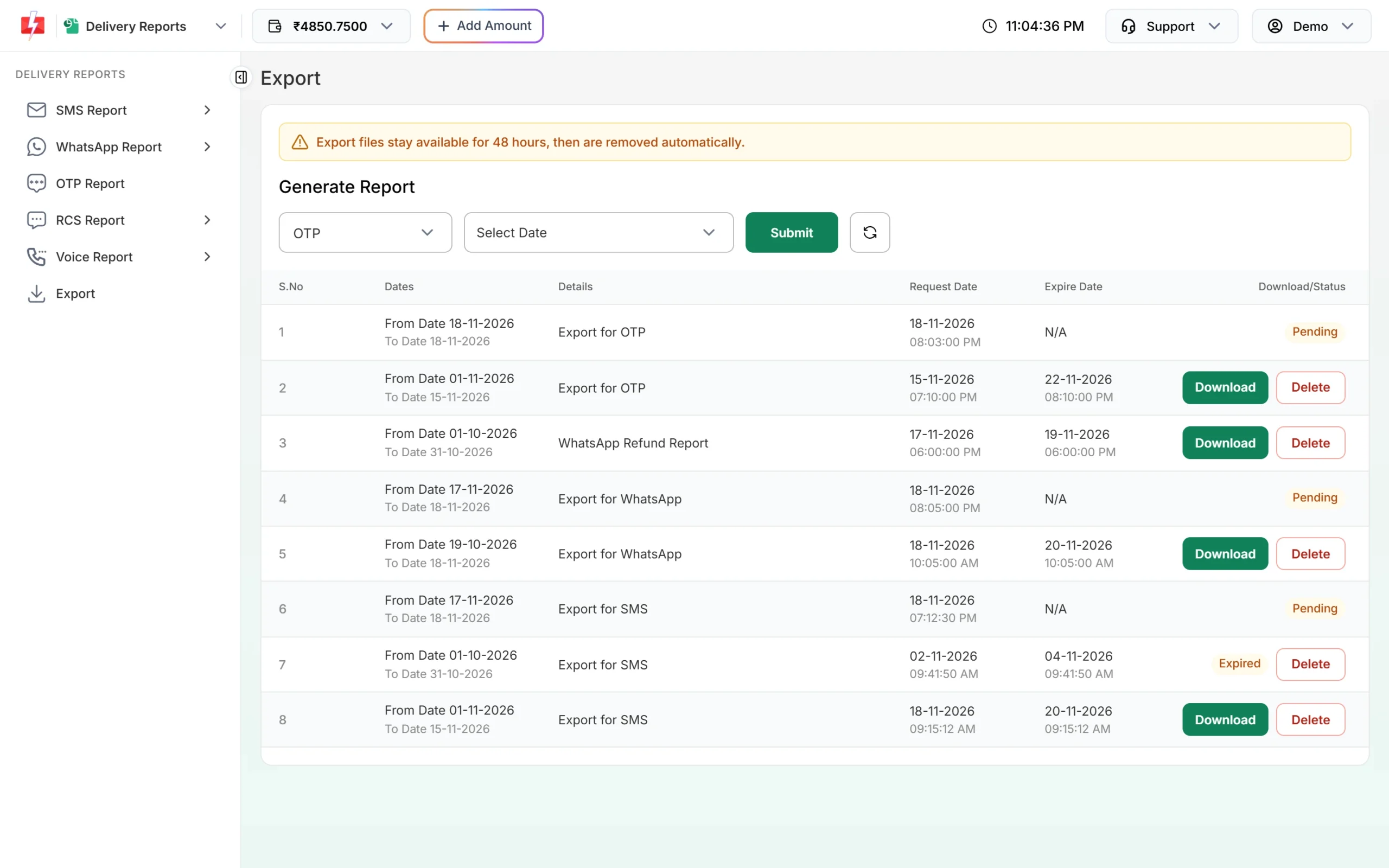
Request an OTP export, then download it. -
Work out the rates in a spreadsheet
The export has, among others, these columns: Channel, Receiver, Status, Verified (Yes, No or Expired), Verified At, Attempts and Amount Debit. Count delivered rows for the delivery rate, then count unique receivers with at least one “Yes” and divide by unique receivers in the file for the conversion rate.
“Expired” in the Verified column covers codes that timed out, used up their tries, or were replaced by a newer OTP to the same number. A high Expired count with a good delivery rate usually points to the resend flow or the code screen.
What pulls OTP conversion down, and the fix
| Cause | How it shows in the data | Fix |
|---|---|---|
| Phone off, no signal, number not on that channel | Failed rows with a reason such as “Number switch off or low signal” | Add a fallback on the other channel in the Smart OTP template. |
| Wrong or mistyped numbers | Invalid or failed rows, many with no verification | Show the number on the code screen with an Edit link. Check the format before sending. |
| DLT problems (template, header, PE-TM chain) | A sudden jump in SMS failures on all operators or one operator | Check your DLT status and PE-TM chain. Test the template with Test OTP. |
| Users press Resend too early | Several rows per user, most marked Expired | Show a resend timer that matches your OTP Settings wait. Only the latest code works. |
| Code hard to find or type | Delivered but not verified | Add autofill (app hash or WebOTP line) and one numeric input with paste support. |
| Expiry too short | Verified At close to the expiry, many Expired | Smart OTP defaults to 15 minutes. Do not cut it to one or two. |
| Fake sign-ups (SMS pumping) | Bursts to number ranges that never verify | Add rate limits and bot checks on the request step. |
See fallback working in the report
When a fallback is set, an OTP that fails on one channel is sent again on the other channel within 120 seconds, with the same code. In Delivery Details you then see two receiver rows under one Request ID, each with its channel badge.
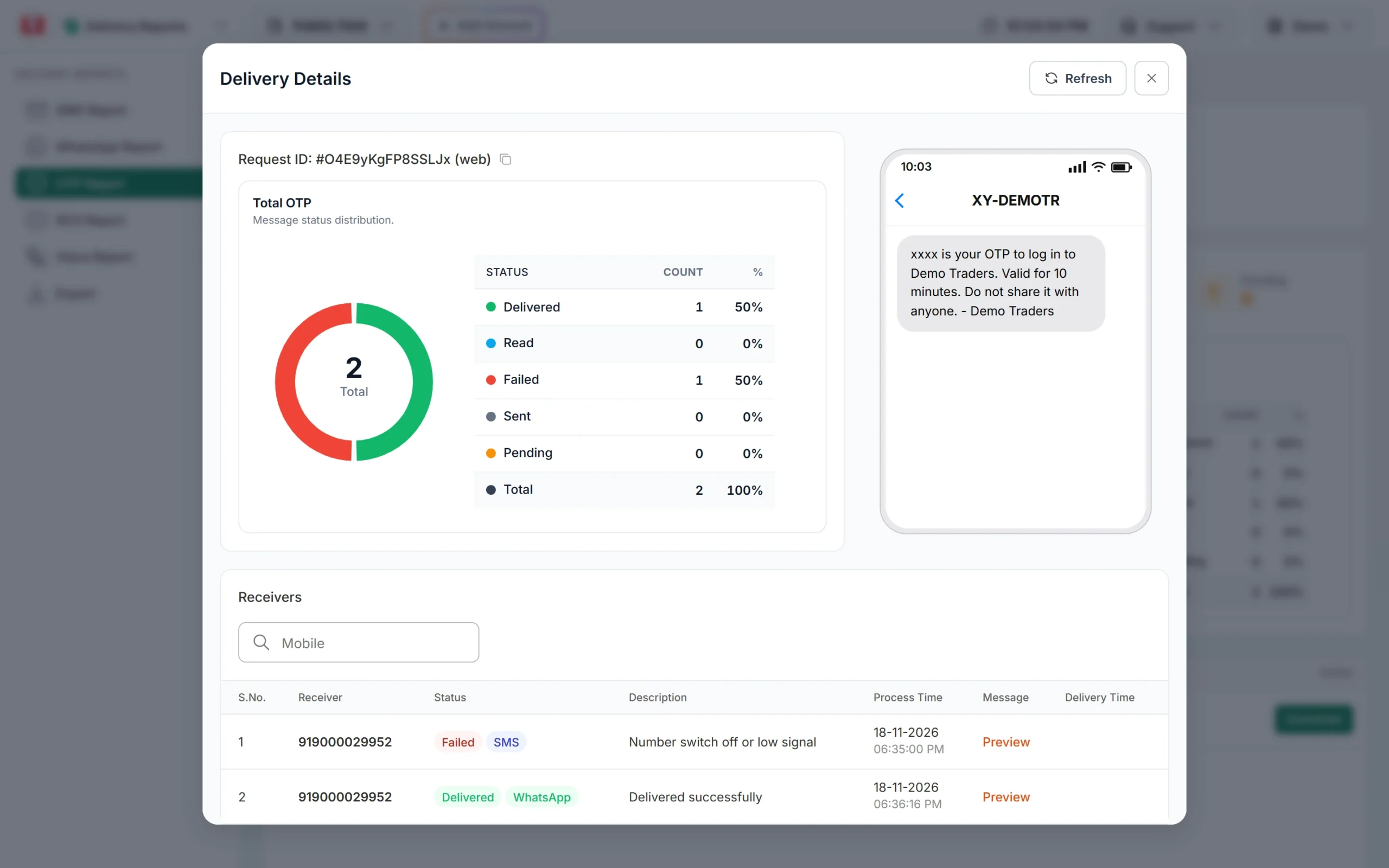
The fallback message is charged like any other message on that channel. At the time of writing, OTP by SMS costs ₹0.25 down to ₹0.11 per SMS by recharge slab. See the OTP page for current rates.
Sending in bulk? For high OTP volumes our team offers discounted rates. Talk to our team or see OTP pricing.
For real-time numbers, use a webhook
If you want delivery statuses in your own dashboard, set up an OTP webhook under Webhook > OTP. Record the verify result in your own app when the user enters the code, and join the two by mobile number and time.
Frequently asked questions
What is OTP conversion rate?
The share of users who requested an OTP and then verified it. Count it per user, not per message.
What is the difference between OTP delivery rate and verification rate?
Delivery rate shows how many messages reached phones. Verification rate shows how many delivered codes users then entered correctly.
Where can I see which OTPs were verified in Fast2SMS?
In the OTP report export. Its Verified column shows Yes, No or Expired for each OTP, with the time it was verified.
Why are many OTPs delivered but not verified?
Usually the code screen: early resends, short expiry, no autofill, or fake requests from bots.
Does WhatsApp fallback improve conversion?
It helps when the first channel fails, because the user gets the same code on the other channel within two minutes.
How often should I check OTP conversion?
Weekly, and after any change to your template, login screen or settings.