
RCS problems in Fast2SMS show up in three places: an error when you click Send in Bulk RCS, an error reply from the RCS API, or a Failed or Non-RCS status in the delivery report. This page lists every RCS error message we know of, what it means and how to fix it.
Find the exact text you see in the tables below. If you still need help, contact support with the Request ID of the campaign from the RCS report.
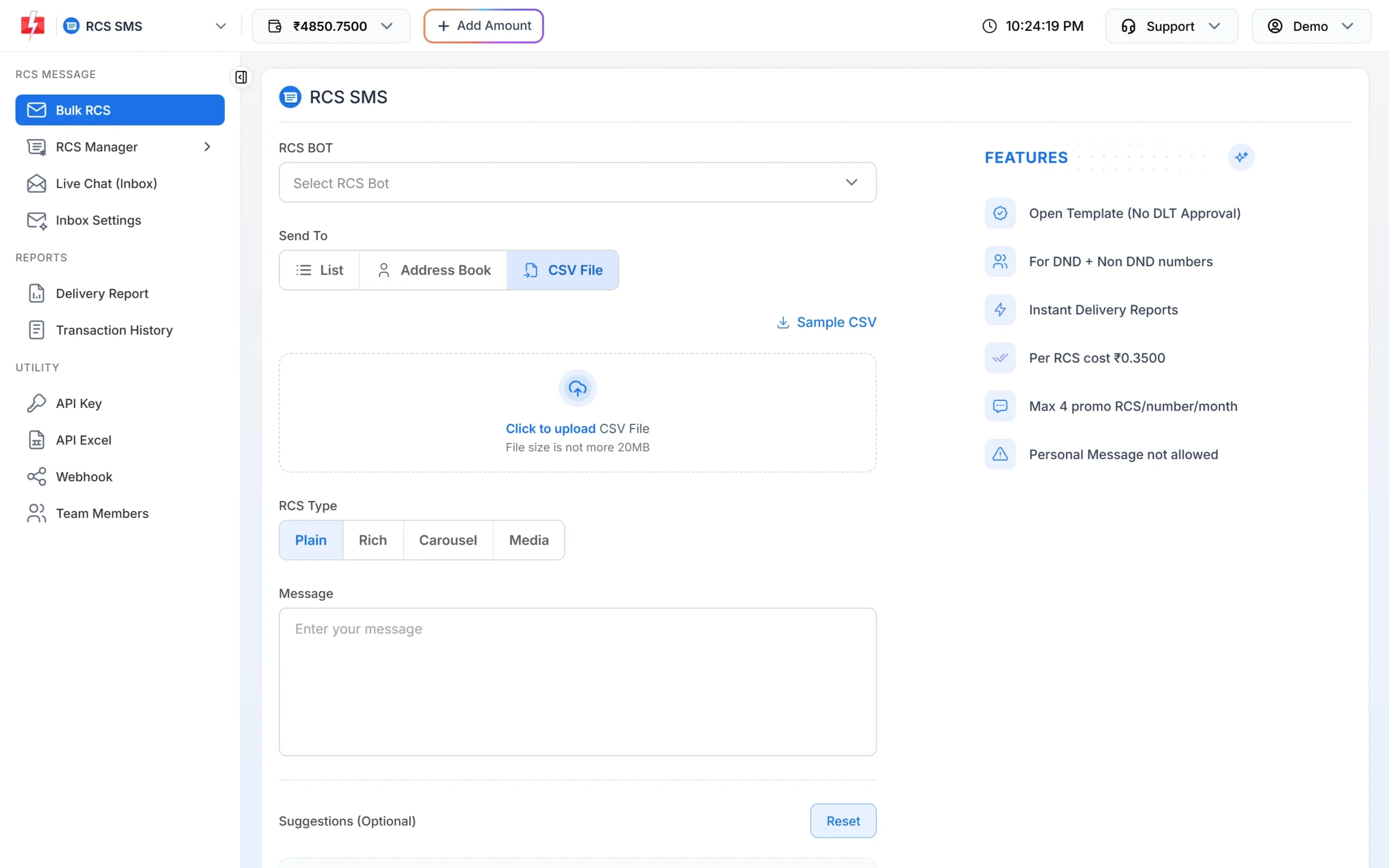
Errors when you send from Bulk RCS
These appear as a message on the Bulk RCS page after you click Send or Schedule. Nothing is sent and nothing is charged.
| Error message | What it means | Fix |
|---|---|---|
| Your RCS brand is pending approval. You cannot send RCS messages until it is approved. | Your brand or bot is not approved yet. | Wait for approval. The registration form says this can take 3-7 days. |
| Promotional messages are allowed from 7:00 AM to 10:00 PM | You tried to send from a promotional bot outside these hours. | Send between 7:00 AM and 10:00 PM, or schedule it. A night schedule moves to 7:01 AM. |
| Minimum one contact or one group requried. | No numbers were added. | Add numbers under Send To: List, Address Book or CSV File. |
| Message length should be less than 3000 characters. | The message is too long. | Shorten it to under 3,000 characters. |
| Insufficient wallet balance, you need at least ₹X to send this RCS Message campaign. | Your wallet does not cover the whole campaign. | Click Add Amount, recharge and send again. |
| Your sheet was not found, please upload again. | The uploaded file could not be read. | Upload the CSV file again. |
| Invalid column for contacts, column not found in sheet | The column you chose for numbers is not in the file. | Choose the column that has the mobile numbers. |
| Sheet must contain minimum one contact no. | The file has no numbers. | Check the file and upload it again. |
| Invalid Mobile Number in (column name). | The first number in that column is not a valid Indian mobile number. | Use 10-digit numbers starting with 6, 7, 8 or 9. Remove headings or blank rows at the top. |
Tip: Duplicate and invalid numbers are removed before sending and shown in the confirmation popup, so a few bad numbers in a list do not stop the campaign. The “Invalid Mobile Number” error only appears when the column itself looks wrong.
Errors from the RCS API
The RCS API returns HTTP 400 with "return":false, a list of the fields with problems in errors_keys, and the messages in errors. Check errors_keys first to see which field to fix.
{"return":false,"errors_keys":["bot_id"],"errors":{"bot_id":["Invalid or inactive RCS bot"]}}| Error or field | What it means | Fix |
|---|---|---|
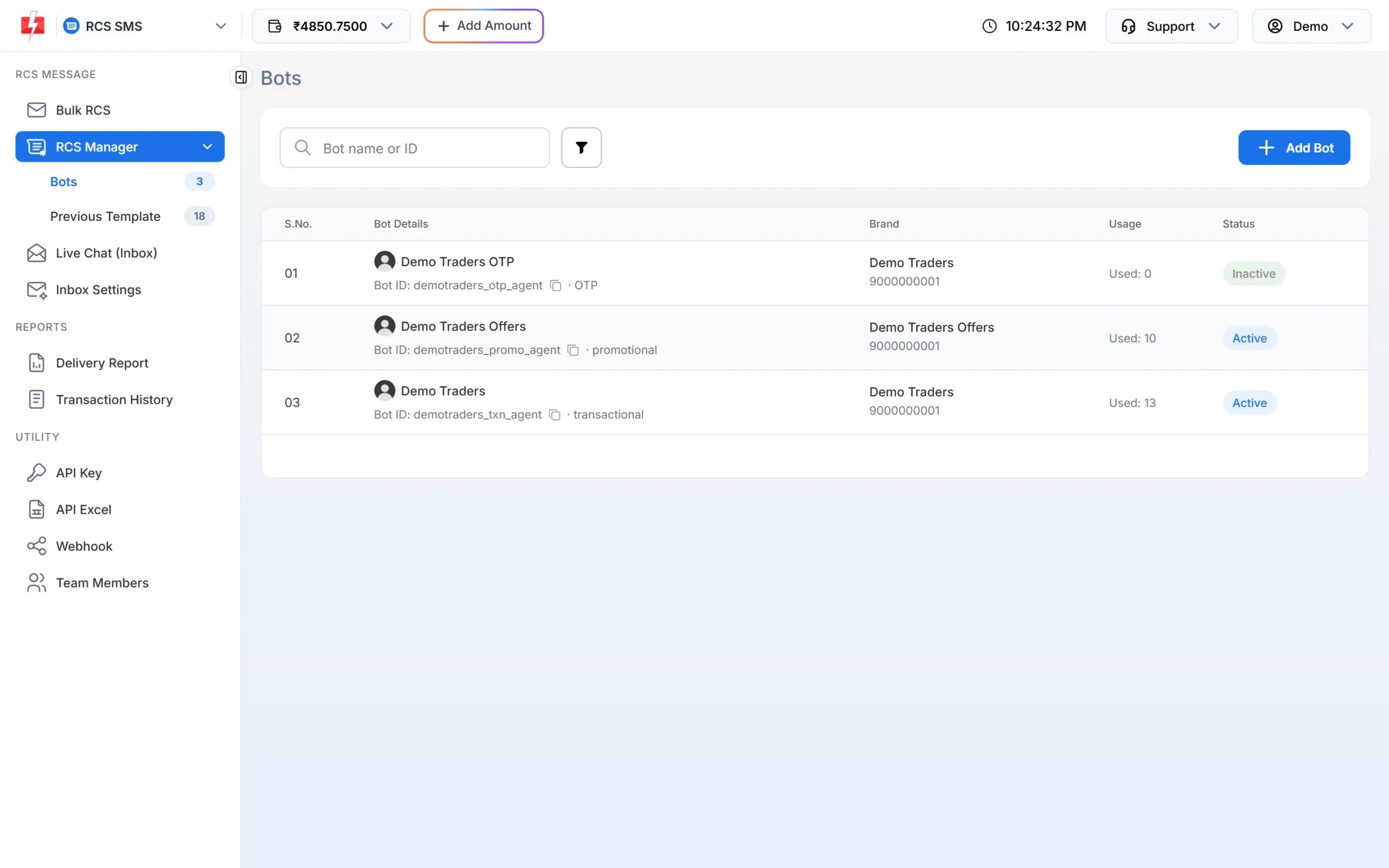
| Invalid or inactive RCS bot | The bot_id is wrong, belongs to another account, or the bot is not approved and active. |
Copy the Bot ID from RCS Manager > Bots and check its Status is Active. |
| The bot id is invalid. | The bot_id value is not a plain text ID. |
Send the Bot ID as a string, exactly as copied. |
| Mobile Number format is invalid. | The to number is not a valid Indian mobile number. |
Send one 10-digit number starting with 6 to 9. +91 or 91 in front is accepted. |
type |
Missing or not one of plain, rich, media, carousel. | Set type to one of these four values. |
message |
Missing for plain or rich, or over 3,000 characters. | Add the text and keep it under 3,000 characters. |
title |
Over 100 characters. | Shorten the rich card title. |
media_url |
Missing for type media, or not a valid URL. | Use a full public link starting with https://. |
suggestion_text, suggestion_url, suggestion_phone |
Button text over 25 characters, or the URL or phone missing for the button type. | Keep button text to 25 characters. Add suggestion_url for openUrl, suggestion_phone for dial, and latitude/longitude for viewLocation. |
cards |
Fewer than 2 or more than 10 cards, or a card without title or description. | Send 2 to 10 cards, each with a title and description. |
| Authentication errors (HTTP 401) | The API key is missing, wrong or disabled. | Send your key in the authorization header. See the API error codes guide. |
Failed and Non-RCS in the delivery report
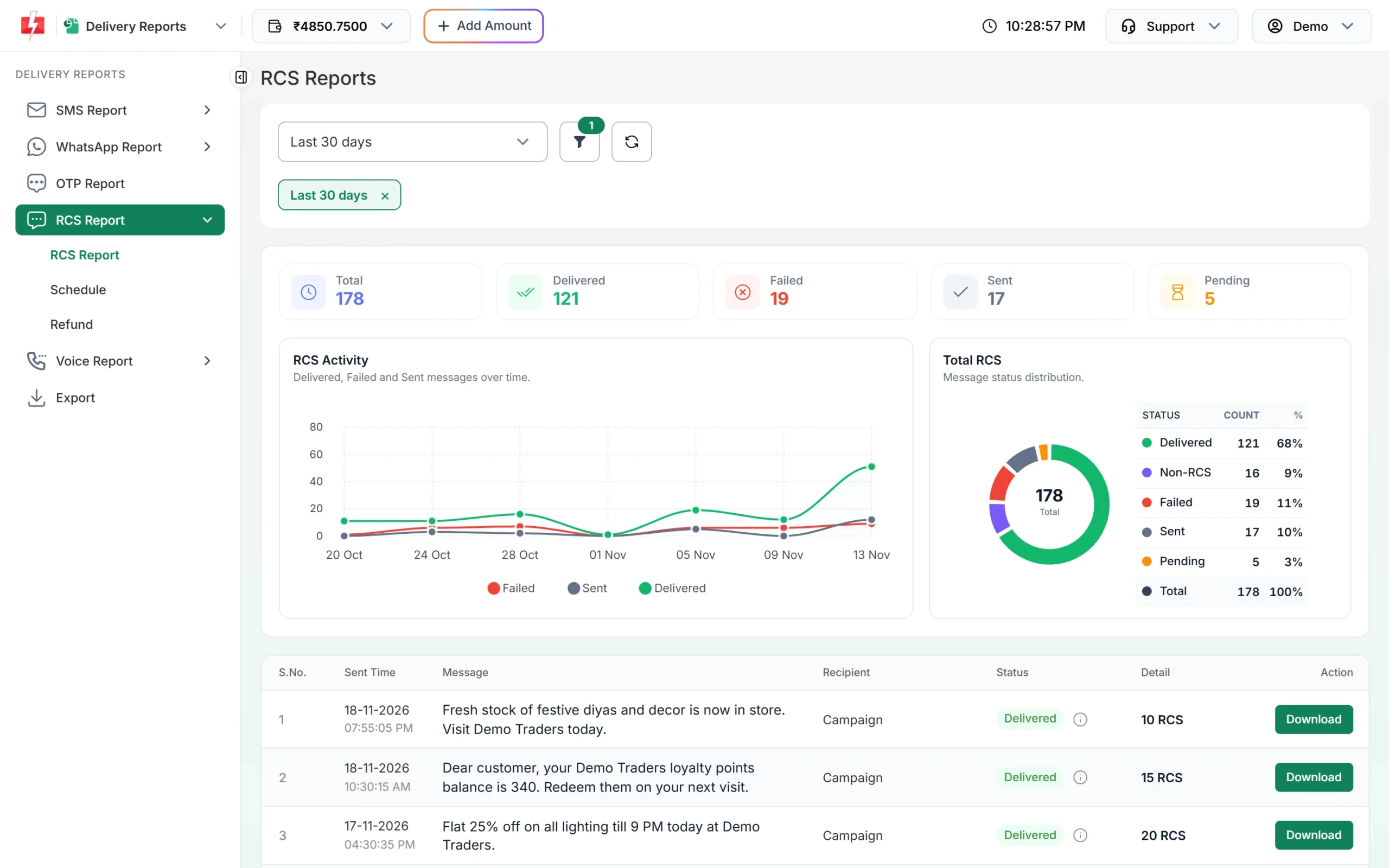
These are per-number results after the campaign is sent. Open Delivery Report > RCS Report, click the campaign and read the Description column in Delivery Details. Every number is charged when the campaign is sent, and Failed and Non-RCS numbers are refunded automatically within 48 hours.
| Status and description | What it means | Fix |
|---|---|---|
| Non-RCS: Number is unreachable / not RCS enabled | The phone cannot receive RCS (RCS turned off, no supported app, or the number is not reachable on RCS). | Nothing to fix on your side. Reach these customers by SMS or WhatsApp. The amount is refunded. |
| Failed: Not Reachable | The phone did not come online within 6 hours, so the message expired. | Send again later. The amount is refunded. |
| Failed: Monthly Limit Reached (4 Promo RCS Allowed) | The number already got 4 promotional RCS this month. | Wait for next month. Do not move offers to a transactional bot. The amount is refunded. |
| Sent (for a long time) | The network accepted the message but the phone has not confirmed delivery. | Click Refresh later. Sent is not refunded because the network accepted it. |
| Pending | The message is still being processed. | Wait a few minutes and refresh. |
| Rejected or another error text | The message was not accepted for delivery. | Contact support with the Request ID shown at the top of Delivery Details. |
Other RCS errors
- Registration form errors (website, domain email, GST certificate, opt-in form): see the RCS brand registration guide below.
- Inbox Settings errors (out of office text, timezone, working day, delay time): see the RCS auto reply guide below.
- Live Chat, RCS Manager or Inbox Settings is greyed out: you do not have an approved, active bot yet.
Frequently asked questions
Why did my RCS message fail?
Open the campaign in the RCS report and read the Description. The most common reasons are Non-RCS phones, phones that stayed offline for 6 hours, and the 4 promotional RCS per month limit.
Am I charged for failed RCS messages?
The amount is taken when you send. Failed and Non-RCS numbers are refunded to your wallet automatically within 48 hours.
What does Non-RCS mean?
The number cannot receive RCS right now. It may be an iPhone or Android phone without RCS turned on, or a number that is not reachable on RCS.
Why does the API say “Invalid or inactive RCS bot”?
The Bot ID is wrong or the bot is not active. Copy it again from RCS Manager > Bots and check the status.
Why can I not send promotional RCS at night?
Promotional bots can send only from 7:00 AM to 10:00 PM. Transactional bots do not have this limit.
Will Fast2SMS resend failed RCS automatically?
No. Failed messages are refunded, not resent. Send them again later or reach those numbers by SMS.