
There is no single “WhatsApp API key” from Meta. Meta’s Cloud API uses access tokens, which you create in your own Meta app and business settings. If you send through Fast2SMS, you skip that: you connect your number once with Login with Facebook, then use your Fast2SMS API key from API Key in the panel for every WhatsApp API call. The key is free, and Fast2SMS looks after the connection to Meta.
This guide shows how to get a WhatsApp API key on Fast2SMS step by step, how Meta’s own access tokens work if you go direct, and which one you should use.
Meta access token vs Fast2SMS API key
| Meta access token (Cloud API direct) | Fast2SMS API key | |
|---|---|---|
| Where you get it | Meta App Dashboard or Meta Business settings, System Users | Account Setting > API Key, or API Key in the WhatsApp menu |
| What you set up first | A Meta app with the WhatsApp use case, a business portfolio, a phone number, permissions and a payment method | A Fast2SMS account and a number connected with Login with Facebook |
| Expiry | User tokens expire within hours. System user tokens are long-lived, with an expiry you choose | Stays the same until you reset it |
| How you send it | Authorization: Bearer <token> |
authorization: YOUR_API_KEY (no “Bearer”) |
| Works for | Meta’s Graph API | Fast2SMS WhatsApp, SMS, Smart OTP, RCS and voice APIs |
How to get your WhatsApp API key on Fast2SMS
Before you start
- A Fast2SMS account, logged in as the account owner. Team members cannot see the API key.
- Your registered mobile at hand, because viewing the key needs an OTP.
- A Facebook account you have used for a while, and the WhatsApp Business number you want to connect.
-
Connect your WhatsApp number
Switch to the WhatsApp app in the panel. With no number connected you see the Official WhatsApp Business API Registration Process page. Click Login with Facebook and finish Meta’s pop-up: choose your business portfolio, enter the number and verify it with the code Meta sends. Messaging starts about 10 minutes after onboarding.
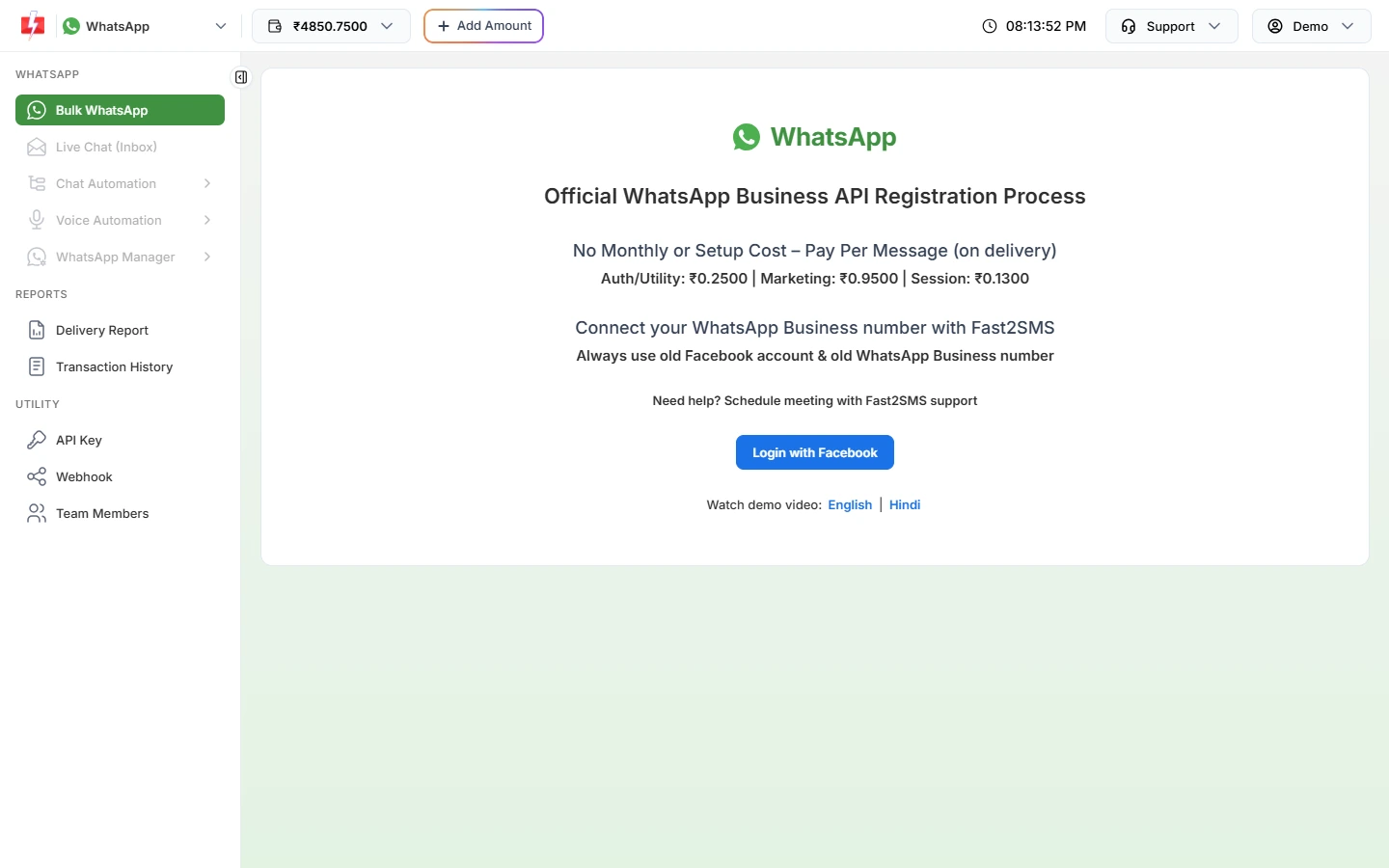
Connect once. Fast2SMS handles the Meta side after this. The same page shows your rates. At the time of writing they are ₹0.25 for authentication or utility, ₹0.95 for marketing and ₹0.13 for a session reply, with no setup or monthly fee.
Sending in bulk? For high WhatsApp volumes our team offers discounted rates. Talk to our team or see WhatsApp pricing.
-
Open the API Key page
Click API Key under UTILITY in the WhatsApp menu, or open Account Setting and click API Key. The page shows a status pill (Enabled or Disabled), the time the key was created and the Authorization Key with only its first characters visible. Keep API Access switched on.
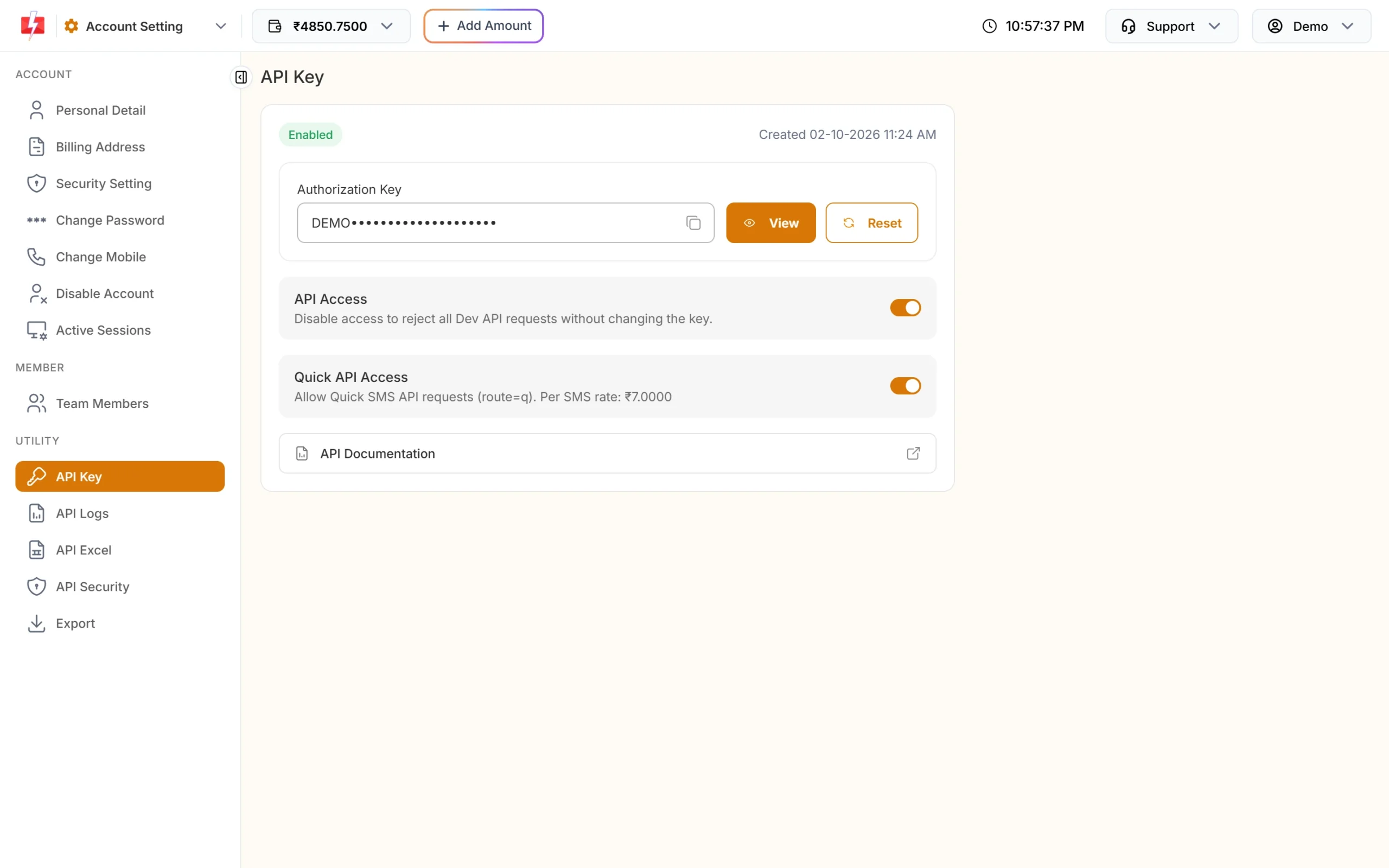
Your API key lives on the API Key page. -
View the key with OTP and copy it
Click View. The box “View Authorization Key?” says an OTP will be sent to your mobile. Click Confirm, enter the OTP, then use the copy icon in the key box.
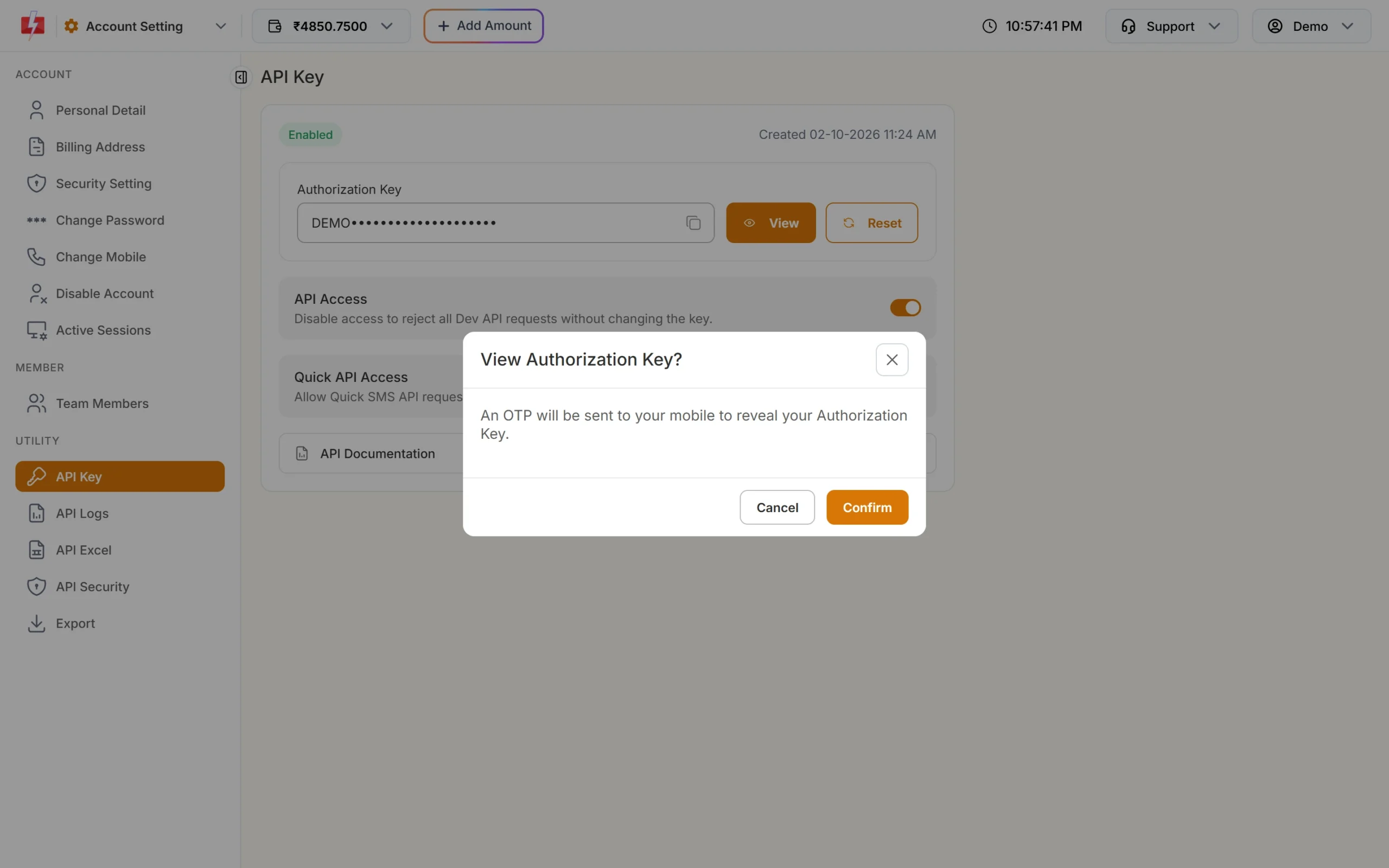
An OTP protects the key. -
Get the template’s Message ID
Go to WhatsApp Manager > Templates and click Sample Code on an approved template. The sample already has the right
message_id, which is Fast2SMS’s Message ID, not Meta’s long Template ID. The Phone Number ID is optional; you find it under WhatsApp Manager > Numbers.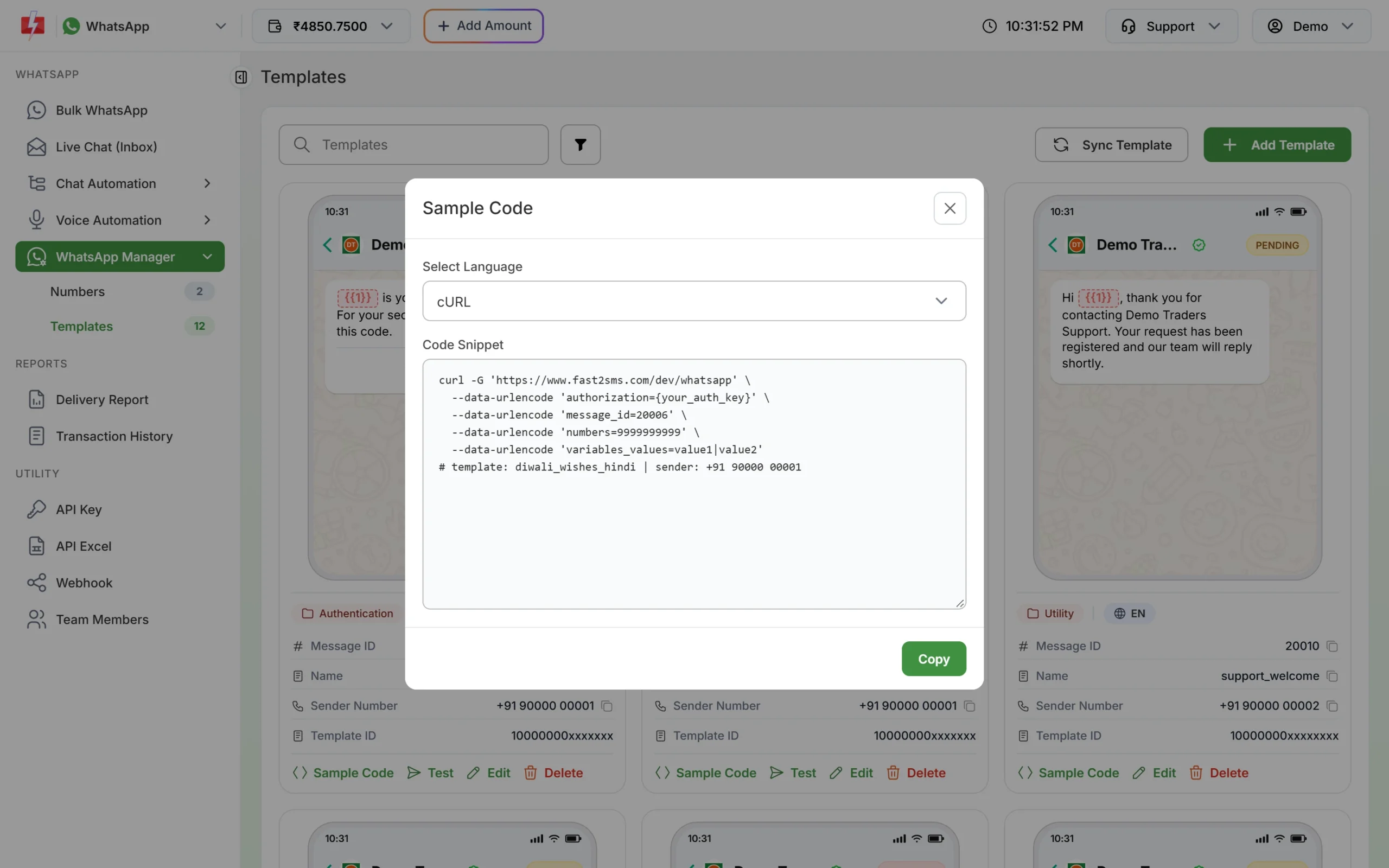
Sample Code gives a ready request for each template. -
Send your first API call
Put the key in a header named
authorization, with no quotes and no “Bearer” in front:curl -X POST "https://www.fast2sms.com/dev/whatsapp" \ -H "authorization: YOUR_API_KEY" \ -H "Content-Type: application/json" \ -d '{"message_id":"20005","numbers":"9999999999","variables_values":"1499"}'A successful reply has
"return":trueand arequest_idstarting with W. Keep the key on your server, never in a mobile app or browser code.
https://www.fast2sms.com/dev/whatsapp/v26.0/PHONE_NUMBER_ID/messages. Send your Fast2SMS key in the authorization header in place of the Meta token. See the WhatsApp Message API guide.How to get a Meta access token (if you use Cloud API directly)
If you build directly on Meta’s Cloud API, there is no key to download. You create a token. Meta’s Access Tokens Guide lists three types:
- User access token: generated each time you open App Dashboard > WhatsApp > API Setup. Good for a first test message only, because it expires within hours.
- System user access token: for direct developers. Long-lived, so it suits a server that sends every day.
- Business integration system user token: for Tech Providers and partners who onboard other businesses through Embedded Signup.
To create a system user token, Meta’s steps are:
- Create a Meta app with the Connect with customers through WhatsApp use case, as in Meta’s Cloud API Get Started guide.
- Open Business settings, click System Users and add a system user with the Admin or Employee role.
- Click Assign assets, select your app and give it the Manage app permission.
- Click Generate token, choose the app and an expiry, and tick
business_management,whatsapp_business_managementandwhatsapp_business_messaging. - Copy the token and send it as
Authorization: Bearer <token>. An employee system user also needs access to both your WhatsApp account and your Messaging account.
Going direct also means you add a payment method with Meta, host your own webhook server and build your own sending, inbox and reports. Tokens that expire or lose access show up as error 0 or 190.
Common problems and fixes
| Problem | Fix |
|---|---|
| 412 “Invalid Authentication, Check Authorization Key” | The key is missing, wrong or was reset. View it again, copy it and send it in the authorization header. |
| 413 “Authorization Key Disabled” | Turn on API Access on the API Key page. |
| “Messaging will be available 10 minutes after onboarding.” | The number was just connected. Wait 10 minutes and try again. |
| “WhatsApp Template ID (message_id) is invalid or not approved.” | Use the Message ID from the template card, not Meta’s Template ID, and only for an APPROVED template. |
| Your no-code tool cannot set headers | Only for such tools, add ?authorization=YOUR_API_KEY to the URL. Prefer the header wherever you can. |
Frequently asked questions
Is the WhatsApp API key free?
Yes. The Fast2SMS API key costs nothing. You pay only for the WhatsApp messages you send.
Do I need a Meta access token to use the Fast2SMS WhatsApp API?
No. You authenticate with your Fast2SMS key. Fast2SMS handles the Meta side for numbers connected with Login with Facebook.
Does the Fast2SMS API key expire?
No. It stays the same until you click Reset. After a reset the old key stops working at once.
Can I use the same key for SMS and WhatsApp?
Yes. One account key works for the WhatsApp, DLT SMS, Smart OTP, RCS and voice APIs.
Where do I find the WhatsApp API key for n8n, Zapier or Pabbly?
Use the same key from the API Key page. See how to connect Fast2SMS with Pabbly, Zapier and n8n.
Can a team member see the API key?
No. The API Key page is only for the account owner.
Is the Phone Number ID required in API calls?
Not for template messages. If you leave it out, a connected number of the template’s account is used. Session messages need the Phone Number ID or the display number.
Why does Meta’s token from API Setup stop working?
That page creates a user access token, which expires within hours. Use a system user token for anything that runs every day.