
Most bulk SMS campaigns that fail, fail for small reasons: a template that is not linked to the sender ID, a missing PE-TM approval, a promotional send at 9:30 PM, or a list full of old numbers. This bulk SMS campaign checklist covers the 15 things to check before you press Send in Fast2SMS, grouped as DLT setup, message, list, timing and money.
Go through it once for every new campaign. Most items take a few seconds once you know where to look.
The 15 checks at a glance
| Group | Checks |
|---|---|
| DLT setup | 1 Entity approved, 2 PE-TM binding approved, 3 Sender ID approved and active, 4 Template approved and linked, 5 Right template type |
| Message | 6 Variables filled, 7 Links whitelisted, 8 Length and language |
| List | 9 Consent and opt-outs, 10 Clean numbers, 11 DND numbers |
| Timing | 12 Promotional sends between 10 AM and 9 PM |
| Money and testing | 13 Wallet balance, 14 Confirmation popup, 15 Test SMS |
Bulk SMS campaign checklist, step by step
-
Your entity is approved
Open DLT Manager > Entity ID. Your entity should show Approved. If the DLT SMS page shows “DLT Registration Required”, no entity has been added yet.
-
Your PE-TM binding is fully approved
Open DLT Manager > PE-TM Binding. Under Your bindings, both TM Approval and Final PE Confirmation must be Approved. If Final PE Confirmation is Pending, approve the request again in your DLT portal. Without a complete chain, operators block the SMS.
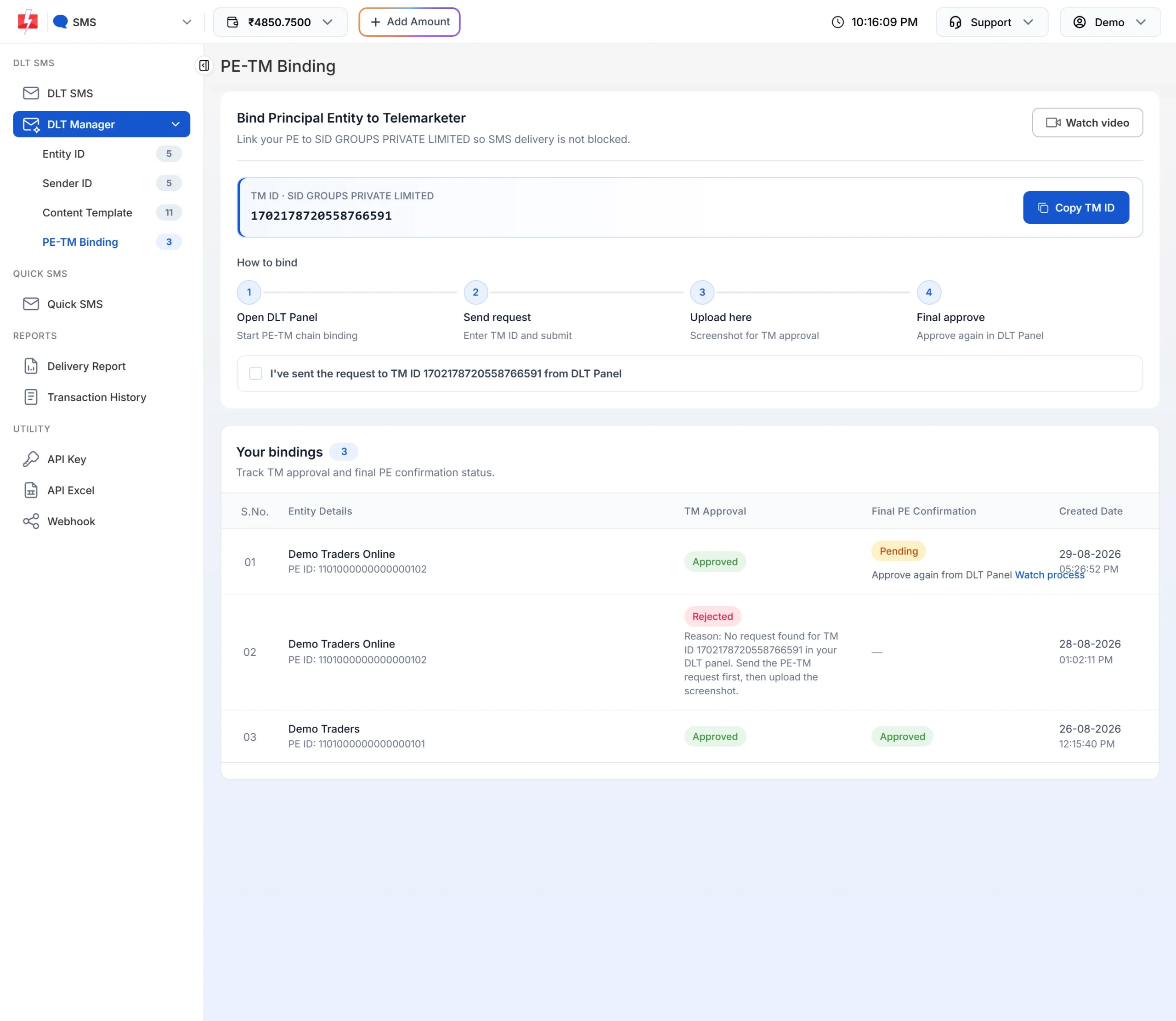
Both columns must say Approved before you send. -
The sender ID is approved and active
In DLT Manager > Sender ID, the header should be Approved. Also make sure it is still active on your DLT portal: headers and templates can be suspended at DLT, for example when their validity runs out. See inactive or suspended headers and templates.
-
The template is approved and linked to that sender
Only approved templates linked to the chosen sender ID appear in Select DLT Template. If your template is missing, it is not approved or not linked to that sender. If the API says “Message is not valid.”, the cause is the same.
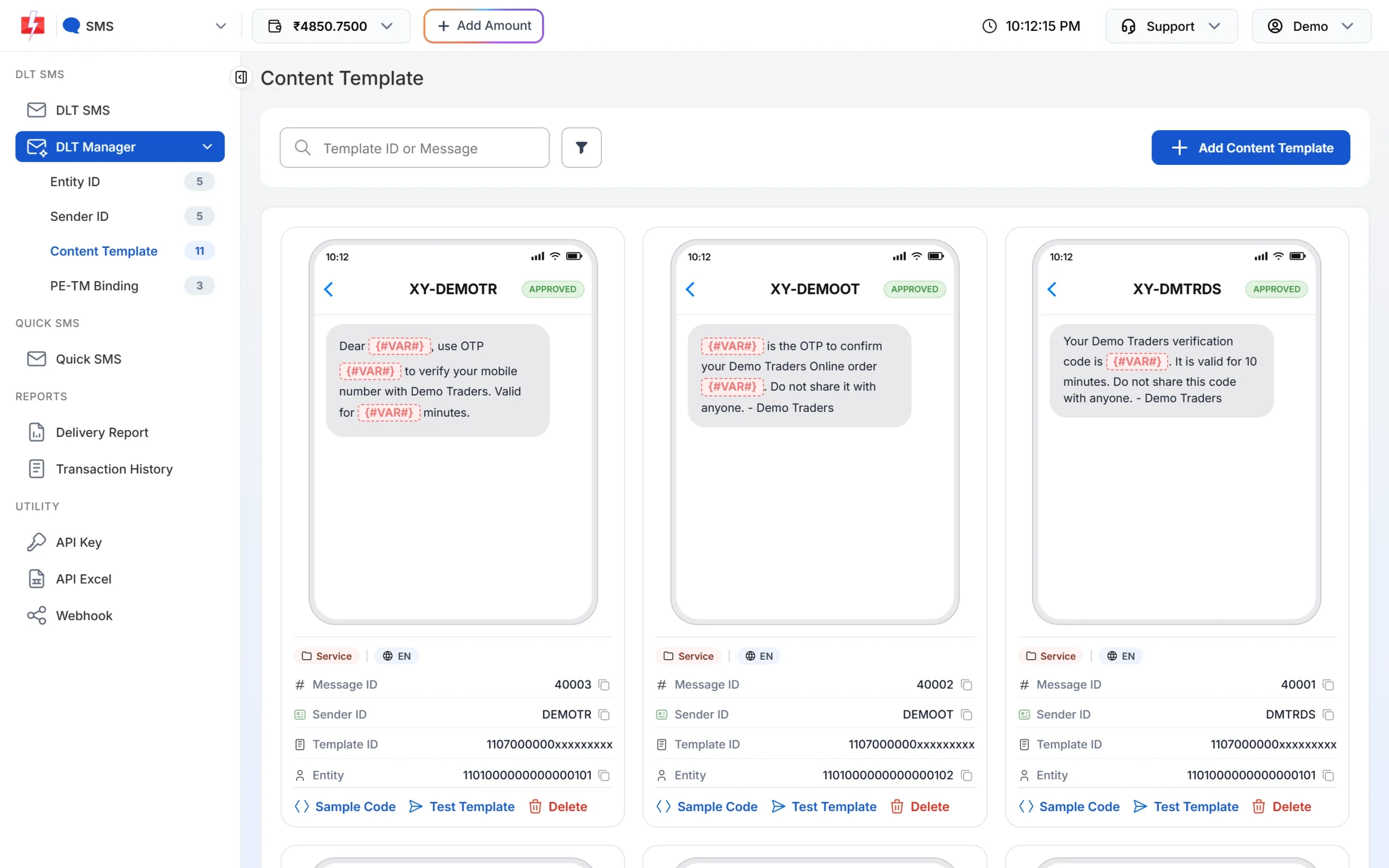
Each template card shows its status, type, sender ID and Message ID. -
The template type fits the message
Order updates, reminders and alerts belong on Service Implicit templates. Offers and sales belong on Service Explicit or Promotional templates. Customers see the type in the header suffix, for example -P for promotional, -S for service and -T for transactional. See header suffix -P, -S, -T, -G explained.
-
Variables are filled with values that fit
Each
{#var#}in the template gets one input field. Fill every field with the real value, and keep the rest of the text exactly as approved. Small changes in spaces or words cause “template not matched” failures. See DLT SMS variables and values.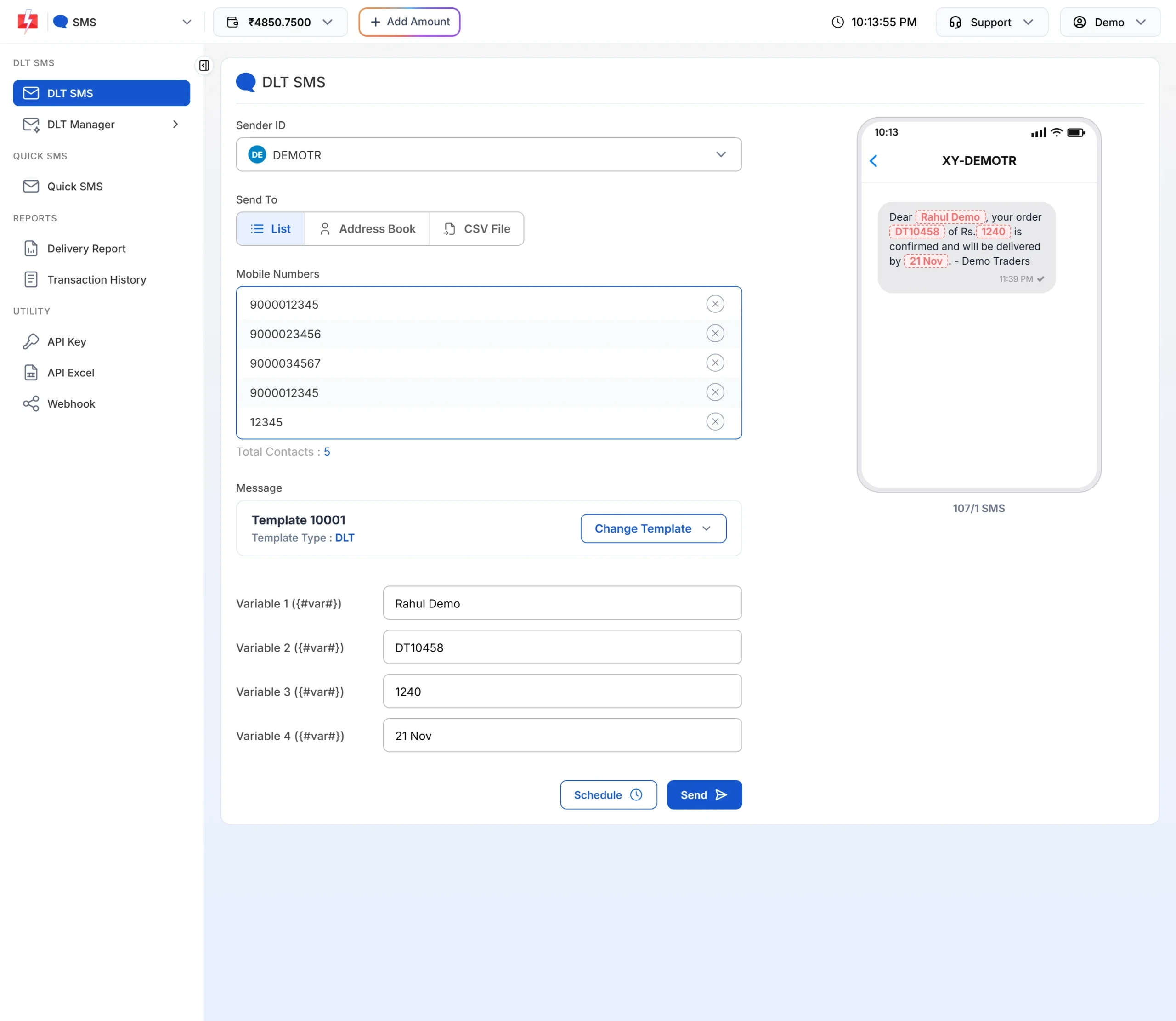
Fill every variable and check the live preview and SMS count. -
Links are whitelisted in the template
If your message has a link, it must match the link registered with the DLT template. Unregistered or blacklisted links make operators reject the SMS. See URL shorteners and links in DLT SMS.
-
Length and language are what you expect
Look at the counter under the preview, for example “107/1 SMS”. One English SMS holds 160 characters. Hindi and other Unicode text holds 70 characters per SMS. A longer message is split into more parts, and each part is charged. See SMS character limit for Hindi and Unicode.
-
You have consent, and you respect opt-outs
Send promotions only to people who agreed to receive them. Under TRAI’s 2025 amendment, consent given for an ongoing transaction is valid for 7 days, and you must not ask for consent again within 90 days after a customer opts out. See DLT consent templates.
-
The numbers are clean
Use 10-digit Indian mobile numbers. Remove numbers that failed with “Number not exist” or showed Blocked or Invalid in earlier campaigns. Fast2SMS removes duplicates and invalid numbers for you before sending, but it cannot know which numbers are closed. See remove duplicate and invalid numbers.
-
You know what happens to DND numbers
Promotional SMS do not reach numbers on the DND list. They show as DND in your report. Do not move an offer to a service template to get around this: that breaks the DLT rules and puts your header at risk.
-
Promotional sends fall between 10 AM and 9 PM
A promotional SMS sent after 9 PM is held and goes out after 10 AM the next morning. Service Implicit templates are not held. If you use Schedule, pick a time at least 1 minute ahead. Choosing a date range sends the campaign once every day in that range, at the same time.
-
Your wallet covers the campaign
If the balance is too low, Fast2SMS stops with “Insufficient wallet balance, you need at least ₹X to send this Bulk SMS campaign.” Add money first with Add Amount.
-
You checked the confirmation popup
Click Send and read the Message Preview & Confirmation popup before you confirm. It shows Cost per SMS, Total Messages (parts), Total Numbers, Duplicate Numbers, Valid Numbers, Invalid Number and the total cost. For a date-range schedule the cost is multiplied by the number of days. Nothing is sent until you click Confirm & Send.
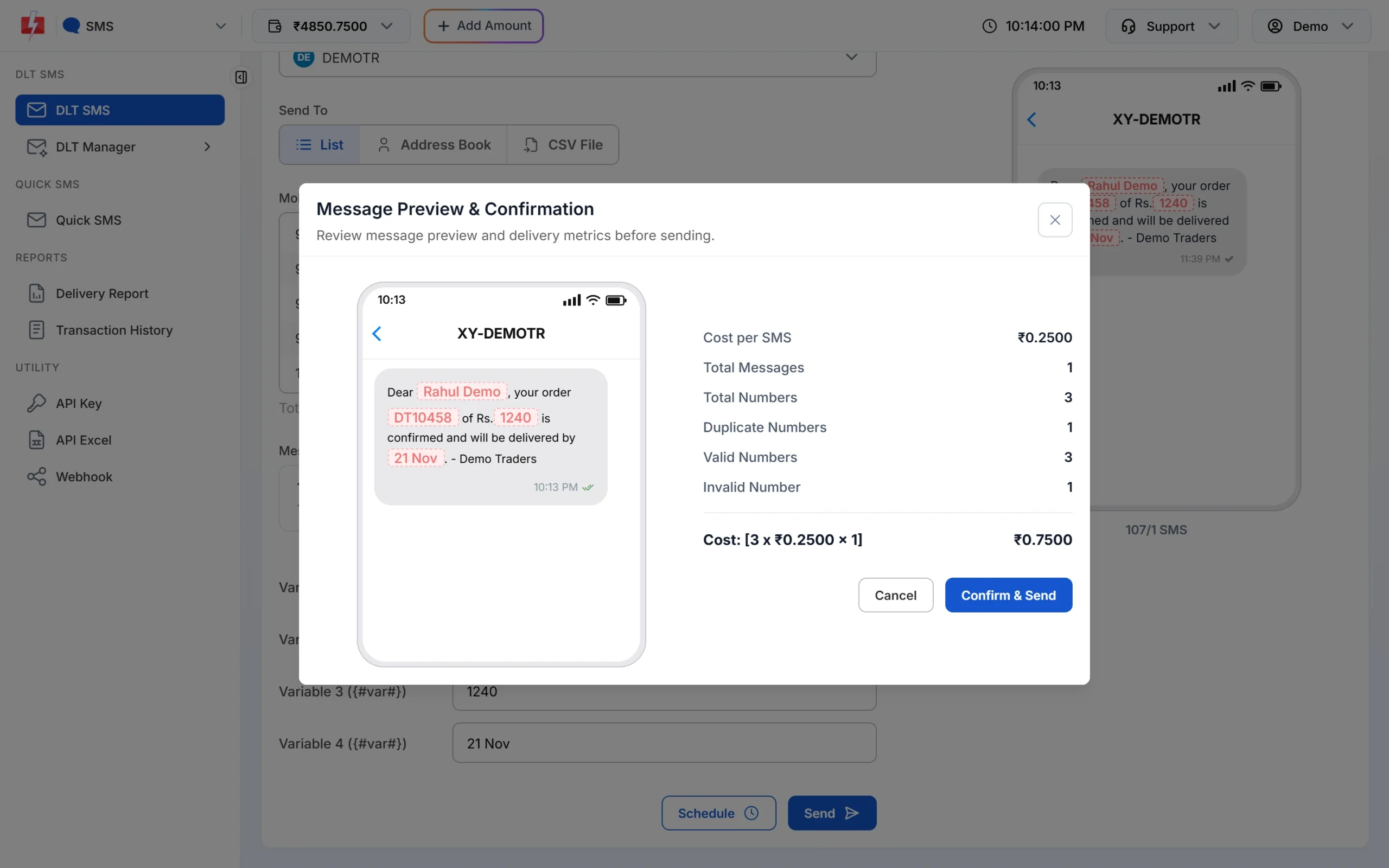
Check numbers, parts and cost before you confirm. -
You sent a test SMS to your own phone
In DLT Manager > Content Template, click Test Template on the template, enter your number, fill the variables and click Send Test SMS. Check the text, the sender and the link on your phone. Keep a few team numbers in the real campaign too, so you can see it arrive. See how to send a test SMS.
What the campaign will cost
The confirmation popup in check 14 shows the cost per SMS and the total for valid numbers only. Duplicate and invalid numbers are not charged, and each extra SMS part is charged. For current rates see the bulk SMS pricing page.
Sending in bulk? For high SMS volumes our team offers discounted rates. Talk to our team or see SMS pricing.
After you press Send
Open Delivery Report and watch the campaign. Numbers move from Pending and Sent to Delivered or Failed as the operator reports come in. When the reports have settled, download the campaign report and remove failed, blocked and invalid numbers from your list before the next send.
Frequently asked questions
What should I check before sending bulk SMS?
DLT entity, PE-TM binding, sender ID and template approval, the template type, variables, links, message length, consent, a clean list, timing, wallet balance, the cost popup and a test SMS.
Why is my template not showing when I send?
Only approved templates linked to the selected sender ID are listed. Check the template’s status and sender in DLT Manager.
Can I send promotional SMS at night?
No. Promotional SMS go out only between 10 AM and 9 PM. Anything sent later is held until after 10 AM the next morning.
Am I charged for duplicate or invalid numbers?
No. They are removed before sending and are not counted in the cost. Numbers that fail later at the operator are charged.
Can I cancel a campaign after sending?
A sent campaign cannot be stopped. A scheduled one can be cancelled under Delivery Report, Schedule, before it goes out, and the amount returns to your wallet.
Do I need a separate DLT registration for each operator?
No. One DLT registration works for all operators. Your PE-TM chain is set up on the portal where you registered.
How many test numbers should I keep in a campaign?
A few team numbers on different operators is enough to see that the SMS arrives and looks right.